Merging PDFs sounds trivial, and mechanically it is. You list the files, put them in order and get one document back. The trouble comes from the things around it: a file that turns out to be password protected, a contract in the wrong order, a long document that loses its clickable table of contents. This article covers the whole process, from deciding whether to merge at all to checking the finished file, using the Merge PDF tool on this site.
When merging is the right move
Merge when the recipient expects a single document and would otherwise have to open several. Common examples:
- A job application with a cover letter, CV and references.
- A tax or loan submission where an online form allows only one upload.
- A study pack made of lecture notes from different weeks.
- An invoice with its supporting receipts attached behind it.
- A set of scanned pages that came out of a scanner as separate files.
Do not merge when the parts have different audiences. If one file contains confidential salary details and another is meant for the whole team, combining them means anyone who gets the merged file gets both. Also avoid merging when you will want to revise one part later. Keep the originals, and treat the merged file as an output you can rebuild at any time.
Prepare the files first
Five minutes of preparation prevents most problems.
Open each file once. Confirm it opens without a password prompt. The tool rejects encrypted or password-protected PDFs with a message naming the file, and it does not remove passwords. If you control the file, export or save a copy without protection from the original program. If someone else sent it, ask them for an unprotected version.
Check for damage. A file that was interrupted during download or copied badly may be corrupt. The tool rejects these as well. Downloading again is often enough. The article on fixing common PDF errors walks through the usual causes.
Look at the page sizes. Merging does not resize anything. If one file is A4 and another is US Letter, the merged document will contain both sizes in sequence. That is fine on screen, but it can look uneven when printed. A4 and US Letter are close in width but differ in height, so a quick look at the originals tells you whether it matters.
Remove what you do not need. If you only need pages 3 to 6 of a 40-page report, use Split PDF first to extract those pages, then merge the small piece. The merged file stays shorter and the recipient does not have to hunt.
Know the limits. The tool accepts up to 20 files, 50 MB each, and 200 MB in total. A 20-file merge that exceeds the total will be refused, so combine in two rounds if needed.
Name files so the order is obvious
The tool lists files in the order you add them, and you can rearrange afterward, but good names make the first pass nearly correct and make the list easier to scan. Use a numeric prefix:
01-cover-letter.pdf
02-cv.pdf
03-reference-letter-a.pdf
04-reference-letter-b.pdf
Two digits keep 10 after 09 rather than after 1. If you expect to insert something later, number in tens (10-, 20-, 30-) so there is room.
For the output name, include what it is and the date or version: application-pack-2026-11.pdf beats merged.pdf when you look at your downloads folder three weeks later.
Add, order and review
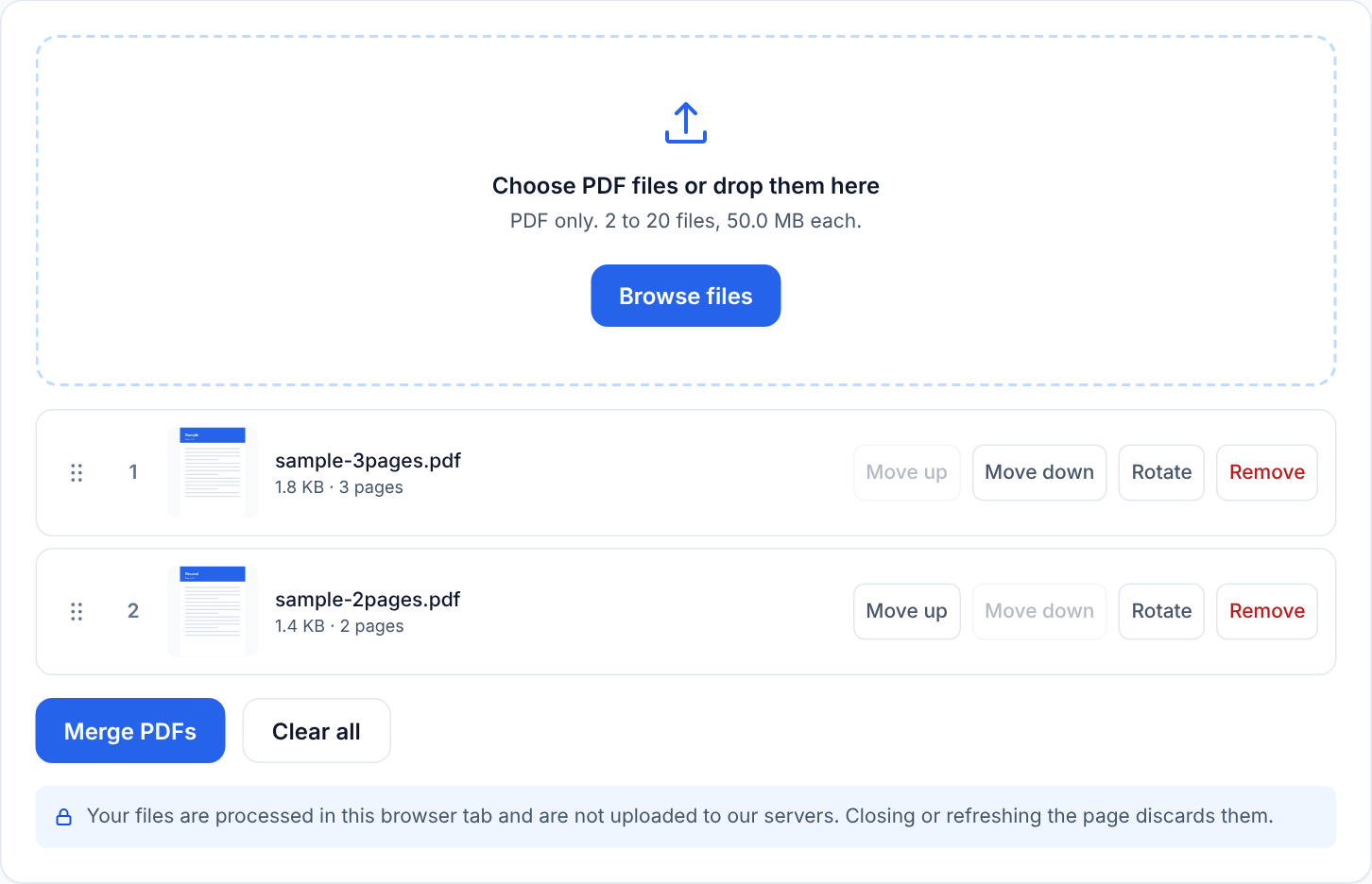
Drop the files into the tool. Each appears with its page count and a thumbnail of its first page, which helps because file names can lie and a thumbnail rarely does. Use these cues:
- Page count. It should match what you expect. A "two-page" form showing 14 pages is probably the wrong file.
- Thumbnail. Confirm the first page matches the document you think it is.
- Order. Drag rows or use the move buttons until the list reads top to bottom in the order the pages should appear.
- Remove. Take out anything added by mistake, including duplicates.
The merged PDF follows the listed order, with each file's pages kept in their original sequence. There is no per-page reordering inside a file here. If you need a different page sequence within one source file, split it into parts first and merge the parts in the order you want. Page ordering and rotation tips explains that approach, and also what these tools cannot do about sideways pages.
Verify the result
Open the merged file and run through this routine:
- Total pages. Add up the page counts shown in the tool and compare to the result.
- Boundaries. Look at the last page of each part and the first page of the next. Ends and starts are where order errors show.
- Page sizes and orientation. Scroll through quickly. Anything that looks different from its neighbours should be something you expected.
- Text. If the sources had selectable text, try selecting and searching in the merged file.
- Links and forms. Click a link or two. If a source had fillable fields, test them (see below).
- File size. The total is usually close to the sum of the inputs. If it must be below an upload limit, check now.
What a merge can lose
Be honest with yourself about what is in your source files, because a merge here may not carry everything across.
- Bookmarks and outlines. The clickable navigation panel in a long report may not be present in the merged file.
- Interactive form fields. Fillable fields from a source may not remain interactive. If a form must stay fillable, fill it in and save a flattened copy before merging, or send it as a separate attachment.
- Tagged structure. Accessibility tags used by screen readers may not be preserved, which matters if the output must meet accessibility requirements.
- Some metadata. Title, author and similar document properties may not carry over.
If you are producing a formal, accessible or navigable document, merge in the program that created it (for example, export several chapters together from a word processor) rather than combining finished PDFs. If you only need pages to travel together, this tool is a good fit.
Encrypted and protected files
An encrypted PDF is rejected, and the message names it so you know which one to fix. The tool does not remove passwords or restrictions, and it does not add them either. Options are practical rather than technical: obtain an unprotected copy from whoever made the file, re-export from the original software, or print the document to a new PDF from a viewer if you are permitted to. If the file is yours and you simply forgot the password, this site cannot help, so look for the original source document.
Keep the process private
Merging happens in your browser, and the files are not uploaded by these tools. That still does not make it sensible to merge sensitive documents on a shared or public computer, because the downloaded result sits in that machine's downloads folder. For more on this, read is it safe to use online PDF tools.
Next steps
- Open Merge PDF, add your numbered files and check the thumbnails before you merge.
- Need to cut a file down first? Use Split PDF to pull out only the pages you need.
- Starting from pictures instead of PDFs? Convert them with Image to PDF, then merge.
- The Merge PDF guide covers every option in detail.