This guide is for people who have two or more PDFs and want one. It is arranged as decisions, tasks, a reference for what the tool shows you, and the limits. If you only want a quick overview, read how to merge PDF files free; the page you are on goes deeper into the tool itself.
Should you merge at all?
Merging is useful, but it is not always the right move. Run through these questions.
| Question | If yes | If no |
|---|---|---|
| Will one recipient read everything in order? | Merge | Send separate files |
| Do you need bookmarks, fillable fields or accessibility tags intact? | Be cautious; keep the originals | Merge freely |
| Is any file password-protected? | Get an unprotected copy first | Continue |
| Do you only need some pages of each file? | Use Split PDF first, then merge | Merge whole files |
| Are the files mixed page sizes? | Expect pages to keep their own size | Fine |
A typical good fit: a job application with cover letter, CV and certificates; invoices for one month; chapters of one report written by different people.
Task 1: Combine files in a set order
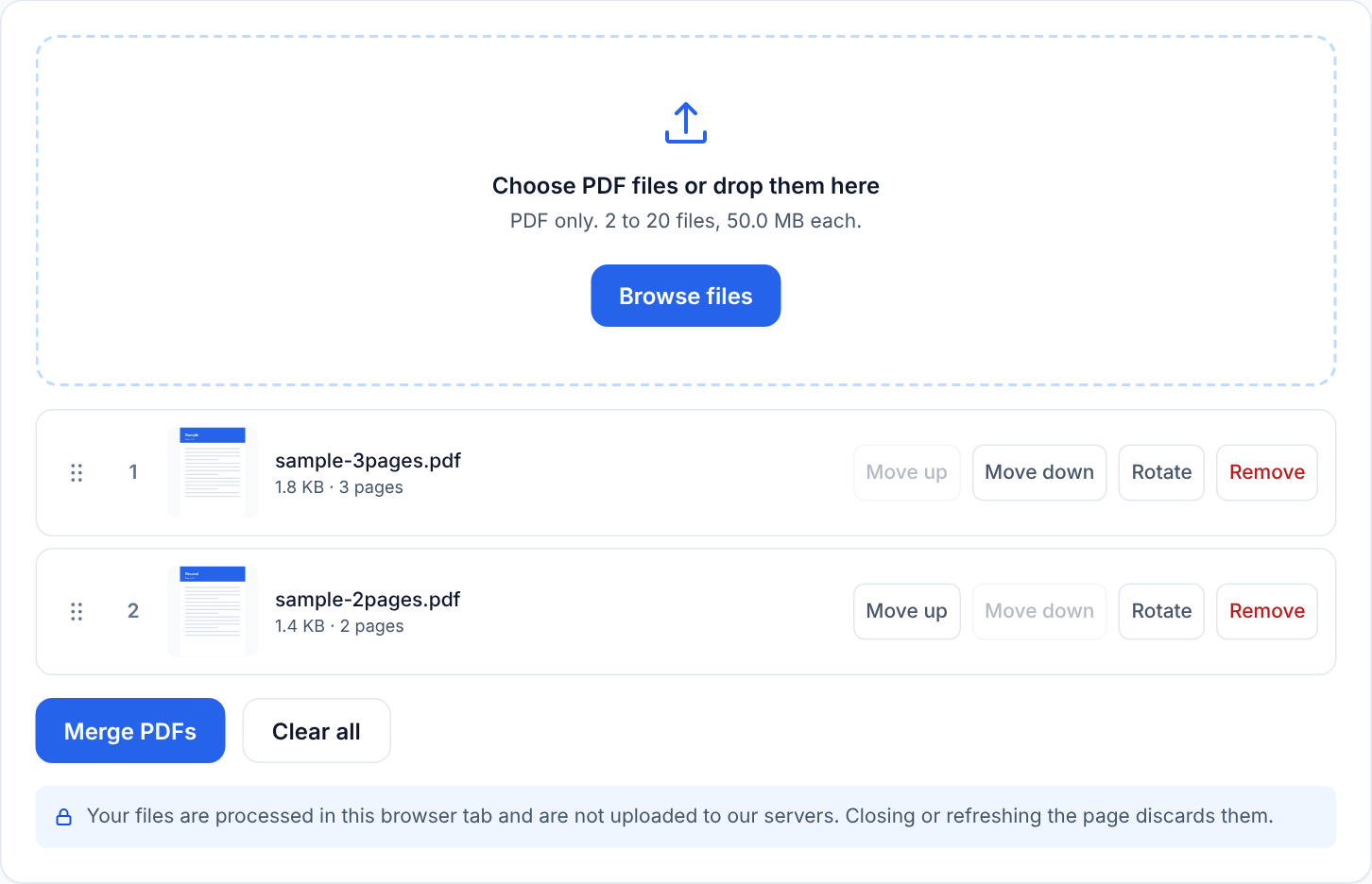
- Open Merge PDF and add your files, either with the file picker or by dropping them in.
- Each file shows its page count and a thumbnail of its first page. Use these to confirm you picked the right documents.
- Drag the files into the order you want. The merged PDF follows the list from top to bottom.
- Remove anything you added by mistake.
- Start the merge and download the result.
Check the output by scrolling through it before you send it anywhere. Two minutes of checking beats an embarrassing missing page.
Task 2: Merge only some pages of a long document
The tool merges whole files. To use only part of a large PDF:
- Open Split PDF and extract the pages you need, for example "4-9", into one new PDF.
- Return to Merge PDF and add that extract alongside your other files.
- Order and merge.
This is also the route when you need a page from the middle of one file placed between two others: split it out, then merge in three parts. The split guide covers range syntax.
Task 3: Turn photos into a PDF, then add it to existing documents
- Create a PDF from your photos using Image to PDF or JPG to PDF.
- Add that PDF to Merge PDF with your typed documents.
- Reorder so the scanned pages appear where they belong.
For example, a rental application might be: your typed form first, then a PDF of your ID photos, then a PDF of your payslips.
Task 4: Add an appendix to many reports
- Add the main reports in the order you want them.
- Add the appendix last, or in the middle if each section needs its own appendix.
- Verify page count: the total should equal the sum of the page counts you saw in the list.
Adding up page counts is a reliable sanity check. If the numbers do not match, a file was not the one you thought.
What the list shows you
- File name: useful when several files look similar, such as invoice-1.pdf and invoice-10.pdf. Rename them in advance if the order matters to you.
- Page count: a quick way to spot an incomplete or wrong file.
- First-page thumbnail: confirms the document identity. It will not show whether later pages are fine.
- Drag handle and remove control: reorder and delete.
The tool merges in the order listed, not alphabetical order from your file manager. Picking five files at once does not guarantee they appear in the order you clicked.
Limits
| Limit | Value |
|---|---|
| Number of files | up to 20 |
| Size per file | 50 MB |
| Total size | 200 MB |
If you exceed any of these, the tool tells you. Work around by merging in stages: merge files 1 to 10, then 11 to 20, then merge the two results. Staging also helps on phones, where memory is tighter. Because all of the work happens in your browser, available memory on your device is the real ceiling, and a large job that works on a laptop may fail on an older phone.
What may not carry over
The merged file is rebuilt from the pages of your files. The following may be lost or changed:
- Bookmarks and outlines: the clickable table of contents in the side panel may not survive.
- Interactive form fields: fillable boxes may stop working or flatten. Complete the form first if you can, then merge.
- Tagged structure: accessibility tags used by screen readers may not carry over.
- Some metadata: title, author and similar properties may be missing or generic.
Visible page content, meaning text, images and layout, is what you should expect to keep. Hyperlinks inside pages and any special features should be checked after merging, since behaviour depends on how the original was made.
If accessibility or navigation matters, such as a long report with bookmarks, keep the unmerged originals and check whether you really need one combined file.
Encrypted and damaged files
Password-protected PDFs are rejected with a clear message. The tool does not remove passwords. Use the password in a viewer, or ask the sender for an unprotected copy. Corrupt PDFs are rejected as well; download them again or request a fresh export. The fix common PDF errors article goes through each message.
Mixed page sizes and orientations
If one file is A4 and another is US Letter, or some pages are landscape, those pages keep their own size in the merged file. Viewers display them correctly, but printing with "fit to page" scales each sheet separately. If you want a uniform document, build your image-based PDFs with the same page size setting, as explained in A4 vs Letter page size and orientation.
If a whole file is the wrong way up, use the Rotate control on its row, which turns every page of that file by 90 degrees. Rotating single pages inside a file is not possible here. See page ordering and rotation tips for how to deal with that before merging.
Worked example
A freelancer has four files for a client pack:
- proposal.pdf, 6 pages
- budget.pdf, 2 pages
- terms.pdf, 3 pages
- signed-scan.pdf, 1 page
In the list, the thumbnails confirm each file. She drags them into order: proposal, budget, terms, signed scan. The tool shows 12 pages in total, and she scrolls through the output to confirm that page 12 is the signature page. Total size is well inside the limits, so a single merge is enough.
Troubleshooting
- Tool refuses a file: it may be encrypted, corrupt or over 50 MB.
- Merged file is bigger than expected: merging combines the contents; it does not compress them. Large scans stay large. See reduce PDF file size tips.
- Wrong order: go back, reorder, and merge again; nothing is saved until you download.
- Missing bookmarks: known limitation; see above.
- Phone struggles: close other tabs, merge fewer files at once.
Privacy
Files are processed in your browser and are not uploaded by these tools. For more detail see is it safe to use online PDF tools.