This guide is organised around jobs you want to get done with the Split PDF tool. First you decide which mode fits, then you follow the closest walkthrough, and at the end there is a reference for every control and a list of limits. If you only want a short overview, the article on how to split a PDF into pages is the quicker read.
Decide first: which mode do I need?
The tool has three modes. Ask two questions. Do you want one file or many? And do you know the page numbers?
| You want | Choose | Result |
|---|---|---|
| A few specific pages as one new PDF | Extract pages | One PDF, extracted.pdf |
| Several parts of a document, each as its own file | Separate files per range | A ZIP of range files |
| One file for every page | Every page as its own PDF | A ZIP of page files |
If you type only a single range in the per-range mode, the result is one PDF and not a ZIP. That is by design, since a ZIP with one file would only add a step.
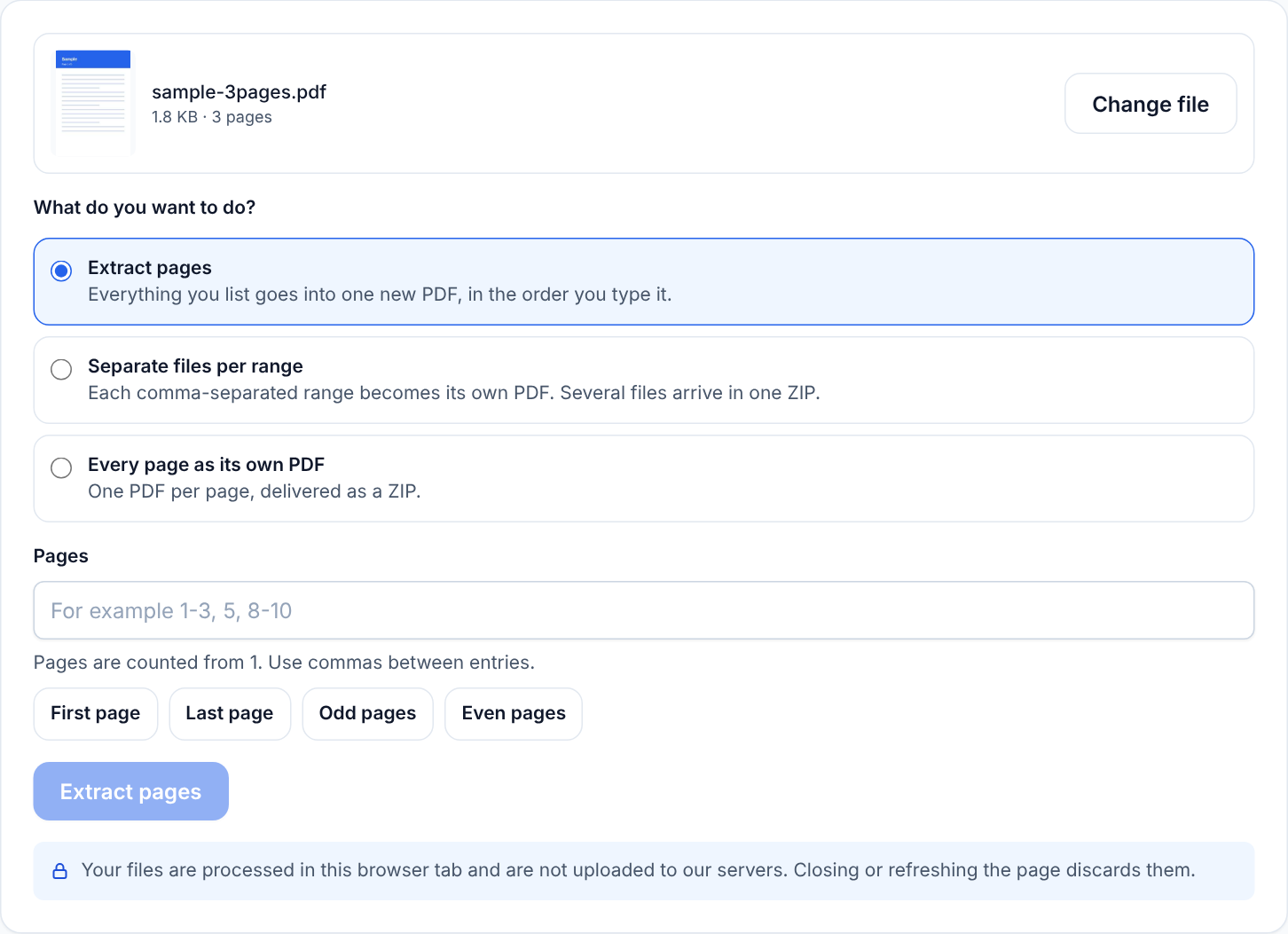
Walkthrough 1: pull a chapter out of a report
Goal: a 60-page report, and a colleague needs only pages 3 to 5.
- Open Split PDF and add the report. Check that the page count and the first-page preview look right.
- Choose Extract pages.
- Type
3-5in the range box. - Press the button, then download extracted.pdf.
- Open it and confirm that it has three pages and that the first one is the page you expected.
If the report has a cover page that is not numbered, remember that the tool counts the cover as page 1. A page showing printed number 3 might be page 4 in the file. Open the original in a viewer and look at its page indicator, which uses the same counting as the tool.
Walkthrough 2: use the presets
The four presets fill the range box so you do not have to type.
- First page fills in
1. Useful for a cover or a one-page summary. - Last page fills in the final page number. Useful for a signature page.
- Odd pages lists 1, 3, 5 and so on up to the end.
- Even pages lists 2, 4, 6 and so on.
Odd and Even are a practical pair when a double-sided document was scanned in two passes. If the pile of fronts was scanned first and the backs second, extracting odd pages gives you all the fronts and even pages all the backs, which you can then reorder or merge separately.
Walkthrough 3: cut a bundle into separate documents
Goal: a scanned bundle with a contract on pages 1 to 6, an invoice on pages 7 and 8 and an identity copy on page 9.
- Add the file and note where each document begins and ends.
- Choose Separate files per range.
- Type
1-6, 7-8, 9. - Run it and download split-pages.zip.
- Unzip it. You will have range-1.pdf, range-2.pdf and range-3.pdf, in the order you typed them.
- Rename each file so you can find it later.
An open-ended range such as 7- means page 7 to the last page, which saves counting when the last document runs to the end.
Walkthrough 4: one file per page
Goal: a 20-page scanned stack where each page is a different invoice, and each must be filed separately.
- Add the stack and confirm the page count is 20.
- Choose Every page as its own PDF.
- Run it and download the ZIP.
- Unzip. You will find page-1.pdf to page-20.pdf.
If some invoices actually have two pages, use Separate files per range instead and write each pair, for example 1-2, 3, 4-5. That is more reliable than splitting everything and then merging pairs back with Merge PDF.
Walkthrough 5: reorder a few pages while extracting
In Extract mode, pages appear in the order you type them. So 9, 1-8 puts page 9 first, followed by pages 1 to 8. This is a quick fix when the last page of a scan belongs at the front. For larger reorganisations, extract the groups separately and merge them in the order you want. The article on page ordering and rotation tips gives a step-by-step method.
Writing ranges: the rules
- Separate items with commas. Spaces are ignored.
- A hyphen joins a start and an end, for example
2-6. - A single number is a single page.
- A start followed by a hyphen runs to the last page, for example
8-. - Page numbers start at 1 and must not go past the last page of the file.
- A range that goes backwards, such as
6-2, is rejected with a suggestion to write it forward. - An empty entry between commas, such as
1,,3, is rejected.
The tool checks the whole box against the real page count before it creates anything, so a typing slip will not produce a half-finished result.
Reference: what each control does
- File area. Choose a PDF or drop one onto the page. One file at a time.
- Page count and preview. Shown once the file is read, so you can confirm it is the right document.
- Mode. Extract pages, Separate files per range, or Every page as its own PDF.
- Range box. Used by the first two modes and hidden when you choose Every page.
- Presets. First page, Last page, Odd pages and Even pages fill the range box.
- Progress and cancel. Large jobs show progress, and you can cancel while it is running.
- Download. Saves the PDF or the ZIP, and a Start over button clears everything.
Limits
| Limit | Value |
|---|---|
| Files at once | 1 |
| File size | up to 50 MB |
| Pages | up to 500 |
| Output files in one run | up to 500 |
A file over a limit is refused with a message. Because the work happens in your browser, the practical ceiling is the memory of your device, and a job that works on a laptop may fail on an older phone. If that happens, try a computer or split in two stages.
What may not carry over
Pages keep their visible content, but items that belong to the whole document may not. Bookmarks, outlines, interactive form fields, some annotations and document-level information such as title and author may be missing. If you rely on a live form or navigation, keep the original and test the output first.
What the tool does not do
It does not remove passwords, so encrypted files are rejected. It does not repair damaged files, rotate or delete pages inside a file, edit text, compress, or run text recognition on scanned pages. If you need the text of a scan to be searchable, you will need separate software.
Troubleshooting
- The file is rejected as encrypted. If you own the document and know its password, open it in a viewer and save an unprotected copy, then try again.
- The file is rejected as damaged. Try opening it in a viewer. If that fails, ask the sender for a fresh copy. See fixing common PDF errors.
- A range is rejected. Read the message. It names the entry that failed and says why.
- The result is not smaller than expected. Splitting divides the document, it does not compress each page. See reduce PDF file size tips.
- Nothing happens on a phone. Try fewer pages at a time, close other tabs and try again.
Privacy
Splitting runs on your device. The PDF is not uploaded to our servers, and closing the tab removes it from the page. You can read more in the privacy policy.
A short checklist
- Confirm the page count and first-page preview.
- Pick the mode that matches the result you want.
- Type or select the pages.
- Download and open the result before you send it.