A long PDF is rarely needed in full. You want the chapter for Tuesday's seminar, the signature page for a landlord, or each invoice from a combined scan as its own file. Splitting does that. This article explains the three ways the Split PDF tool can cut a document, how to write page ranges, and how to check what you get. Everything happens in your browser, so the document is not uploaded to our servers.
Why people split PDFs
Most splitting jobs fall into a few families, and naming yours makes the tool choice obvious.
- Extract what matters. A 60-page report goes to a manager who only needs the summary on pages 3 to 5.
- Separate a bundle. A scanned stack contains a contract, an invoice and an ID copy, and each belongs in a different folder.
- Send one page per person. Certificates, tickets or payslips were exported together, and each must go to a different recipient.
- Get under a size limit. An upload form refuses a big file, so you send it in parts.
- Remove the pages you do not want. The tool has no delete button, but extracting everything you do want produces the same result.
Before you start
Open the PDF in a viewer first and note the page numbers you care about. The tool counts pages from the first page of the file, so the first page is page 1 even if the printed number says something else, such as a roman numeral or a cover that is not numbered. If your document has a printed page 1 on the third sheet, then that sheet is page 3 for the tool.
Add the file to the tool. It reads the page count and shows a preview of the first page, which is a quick check that you picked the right document. A file that is password protected or damaged is rejected with a message, because the tool cannot read it.
Mode 1: extract pages into one PDF
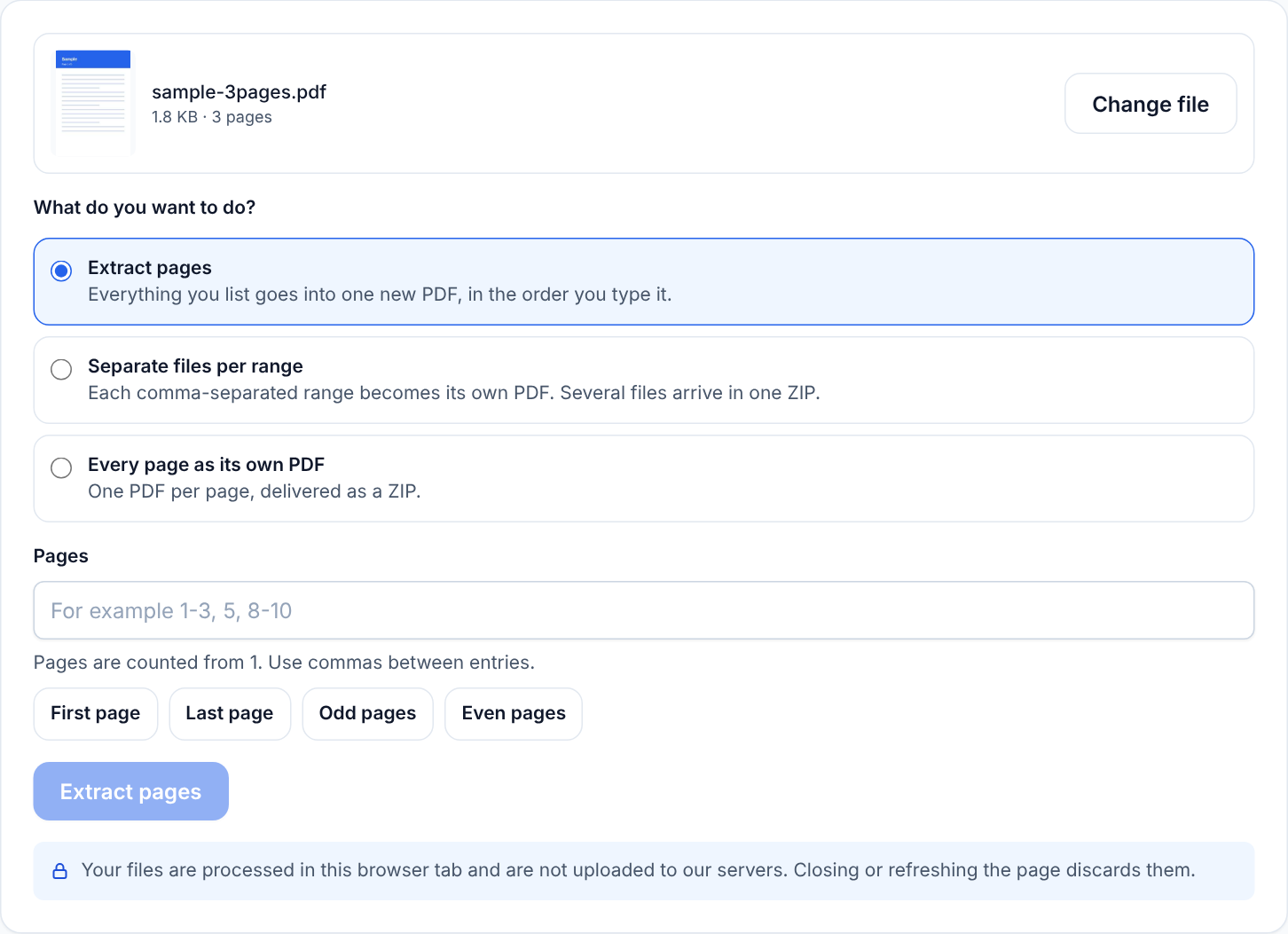
Choose Extract pages when you want one new file out of a larger one. Type the pages you want in the range box and press the button. The new document is named extracted.pdf.
The syntax is simple. Separate items with commas and use a hyphen for a run of pages.
5is page 5 alone.2-4is pages 2, 3 and 4.1-3, 7, 10-12is pages 1, 2, 3, 7, 10, 11 and 12.8-is page 8 through to the last page.
Pages appear in the new file in the order you type them. That means 5, 1-2 puts page 5 first and then pages 1 and 2. It is a handy way to move a few pages to the front, although it is not a full page organiser. See page ordering and rotation tips for bigger reordering jobs.
Below the box there are four presets, which fill the box for you: First page, Last page, Odd pages and Even pages. Odd and Even are useful when a double-sided document was scanned in two passes, front sides first and back sides second, and you want to pull out each set.
Mode 2: separate files per range
Choose Separate files per range when each comma-separated item should become its own PDF. The same box is used, but the meaning changes. Typing 1-6, 7-8, 9 produces three files: pages 1 to 6, pages 7 and 8, and page 9. When more than one file is created, they arrive together in one ZIP archive called split-pages.zip, with files named range-1.pdf, range-2.pdf and so on. If you type just one range, you get a single PDF and no ZIP.
This mode fits the scanned bundle case. If you know where one document ends and the next begins, write the ranges once and let the tool cut. Remember to rename the files after unzipping, since the tool does not know what each part is.
Mode 3: every page as its own PDF
Choose Every page as its own PDF to turn a document into one file per page, delivered in a ZIP. A 12-page scan gives twelve files named page-1.pdf to page-12.pdf. You do not need to type anything. It is ideal for receipts, certificates and invoices that were scanned together but need filing separately.
There is a cap on how many files one run may create, and it is the same as the page limit, so a 500-page document is fine but nothing bigger is accepted.
A worked example
Suppose you have a 30-page PDF of scanned bills. Each bill is one page, and you want them filed separately. Choose the every-page mode, download the ZIP and unzip it. You will find 30 one-page files, which you can rename by date or supplier. If each bill were actually two pages, you would instead choose Separate files per range and type 1-2, 3-4, 5-6 and so on until the end. That takes a minute to type, and it is more reliable than splitting by page and merging the pairs back together.
A second example is a contract where only the signature page needs to go to a colleague. Check the page count, notice that the signature page is the last one, press the Last page preset and extract. You will have a one-page PDF named extracted.pdf.
What carries over and what does not
Each page is copied into the new file with its text, graphics, fonts and images, so the pages look like the original. Things that belong to the document as a whole rather than to a single page may not come along. Bookmarks and outlines, interactive form fields, some annotations and document-level information such as the title may be missing from the new files. If you need a live form or navigation, keep the original and test the extract before you rely on it.
The tool does not compress. Pieces of a document full of large scanned images will be large too. For size advice, read reduce PDF file size tips.
Limits and errors
The tool accepts one PDF at a time, up to 50 MB and up to 500 pages, and it can create up to 500 files in one run. Those numbers are limits on this site, and phones or older computers may run out of memory first, because the work is done in your device memory. If a run fails, try a computer or split the file in two steps. Encrypted or password-protected files are rejected, and the tool does not remove passwords. A range that goes past the end of the document, or that goes backwards such as 5-2, is reported with a message so you can fix it, and nothing is created until the ranges are valid. For other problems, fixing common PDF errors lists the usual causes.
Checking the result
Never trust a split blindly. After you download, open the result in a PDF viewer and check three things: the page count is what you expect, the first and last pages are the right ones, and the orientation and size look normal. For a ZIP, unzip it and open at least the first and last file. If you are sending the file to someone else, open it once more in a second viewer, such as your browser, because that is closer to what many recipients will do.
Privacy
Splitting runs in your browser. The file is read into memory, new files are built there and the download is created locally. We do not receive the document. Closing the tab removes it from the page. If you are handling confidential material, you may also want to clear your downloads folder when you are done.
Quick recap
- Use Extract pages for one new file, Separate files per range for several files in a ZIP, and Every page for one file per page.
- Type ranges with commas and hyphens, and use the presets for first, last, odd or even pages.
- Check the output before you send it.
When you are ready, open the Split PDF tool, or read the split PDF guide for task-by-task recipes.